Global Audio Ducking
Lower active playback together from the keyboard, then restore the existing cue levels.
ENIGMA B / macOS / TECHNICAL DOCUMENTATION
A focused macOS workspace for theatre sound operators, live performances, cultural events, and complex audio playback.
01 / Show-control toolkit
A closer look at the controls StageCue provides for preparing and running a live audio show.
Lower active playback together from the keyboard, then restore the existing cue levels.
Change a playing cue's physical output route without starting the source again.
Run independent Audio Cues together, each with its own waveform, position, and controls.
Shape transitions, start audio groups together, and repeat a defined playback region.
Trigger assigned effects from pads or F1–F12 while the show continues.
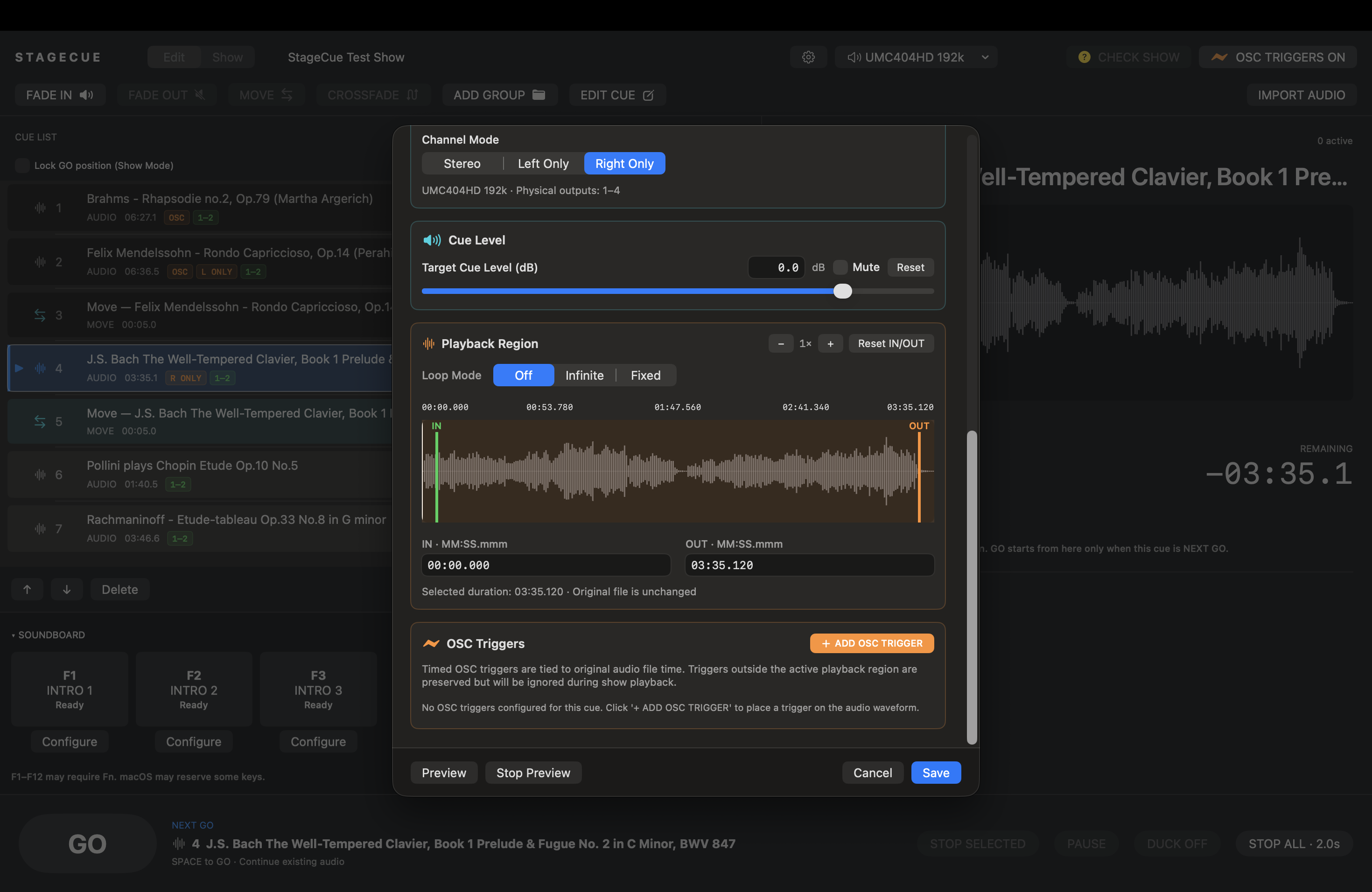
Synchronize lighting cues to audio moments with OSC triggers inside Audio Cues.
02 / Global Audio Ducking
Press Return or keypad Enter to toggle operator-controlled ducking during playback. StageCue smoothly ramps a separate duck gain on active audio instances; the saved and live cue gain stays intact. A cue started while ducking is active inherits the current duck state.
In a theatre
A performer begins speaking while background music is playing. Press Enter to smoothly lower the active music cues. Press Enter again to restore their previous levels.
Illustrative gain change. The operator sets the amount and fade times; StageCue does not detect speech or duck automatically.
03 / Multichannel MOVE
MOVE changes the physical output routing of an Audio Cue that is already playing. The same source continues from its current playback position; MOVE is not a command to switch to another song and does not render 3D or object-based spatial audio.
Move a stereo source between distinct physical output pairs. A mono source can be sent to both members of a pair.
Move between individual physical outputs. A stereo source is folded to mono at the FROM pair; a Left Only or Right Only source moves its active channel.
Example route
Start music on the front speakers, move it toward the middle of the auditorium, and finish on the rear speakers—all while the same track continues playing.
04 / Playback & automation
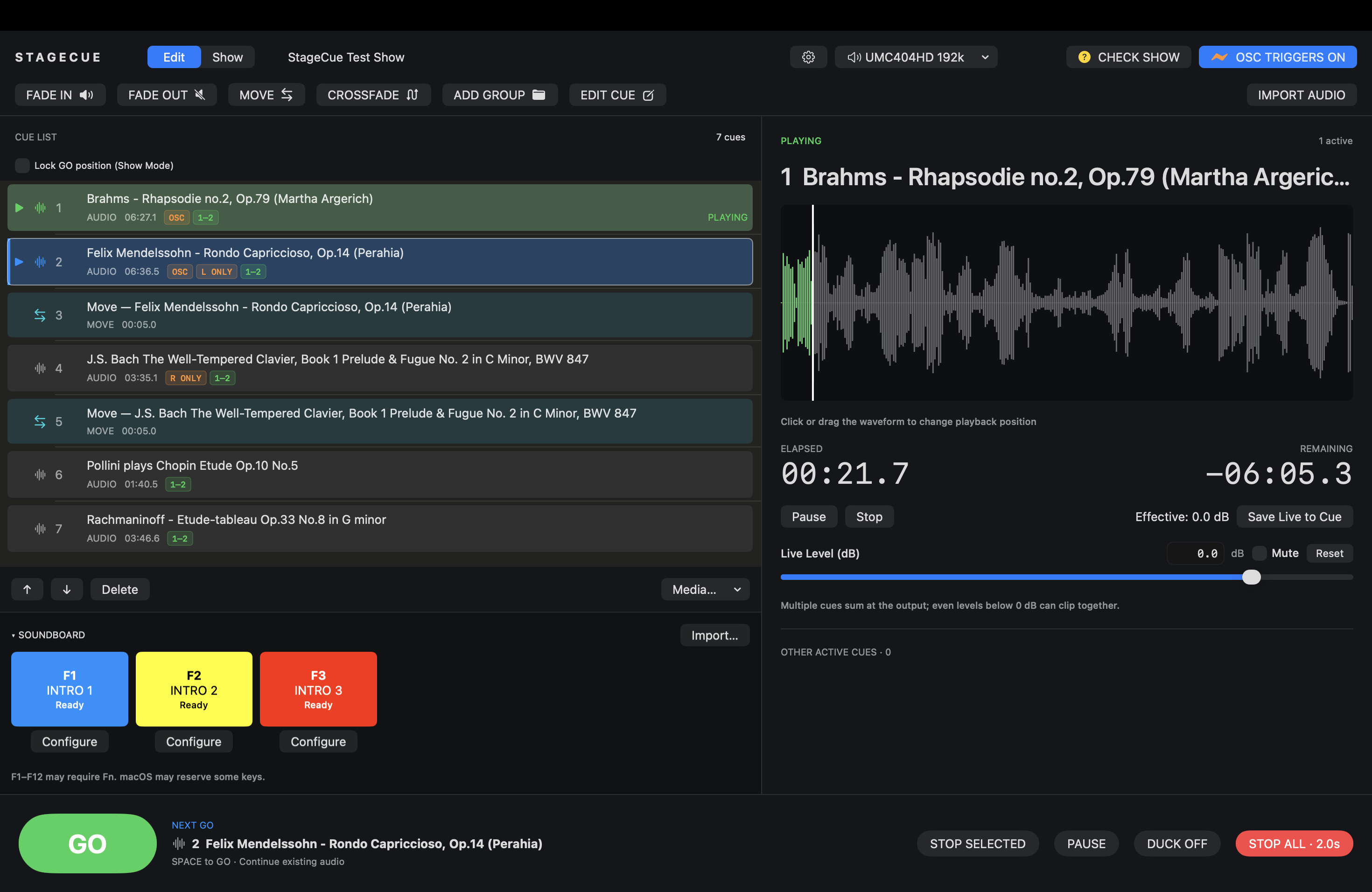
Each GO can start another cue alongside existing playback. Active instances have independent position, waveform, level, pause, and stop controls. The focused cue receives the large waveform; other active cues remain visible in the monitor.
Example: Play background ambience while separately triggering footsteps, thunder, and music.
Set on an Audio Cue and applied when that cue starts. Editing the setting does not start playback.
An action that fades the active instances of its selected Audio Cue targets. It can stop them after the fade, or leave them playing at silence. A zero-duration fade stops immediately.
Select outgoing Audio Cue targets and one incoming Audio Cue. StageCue prepares the incoming audio first, then starts the incoming fade and outgoing fade with their separately configured durations and curves. The incoming main-list cue is skipped by automatic GO advancement but remains manually selectable.
When enabled on an Audio Cue, AUTO starts the next main-list Audio Cue after the previous Audio Cue finishes naturally, or after the preceding Fade Cue completes. The next cue must be the armed NEXT GO cue and also be an Audio Cue with AUTO enabled.
Choose Off, Infinite, or Fixed repeats for the cue's IN/OUT playback region. Fixed repeat count means additional passes after the first. An optional short boundary crossfade is available.
A Group Cue starts its Audio Cue children together after all children prepare. Groups are flat: nested groups and non-audio children are not supported.
05 / Theatre cue list
Prepare the running order in Edit mode, then use the armed NEXT GO position and live controls in Show mode.
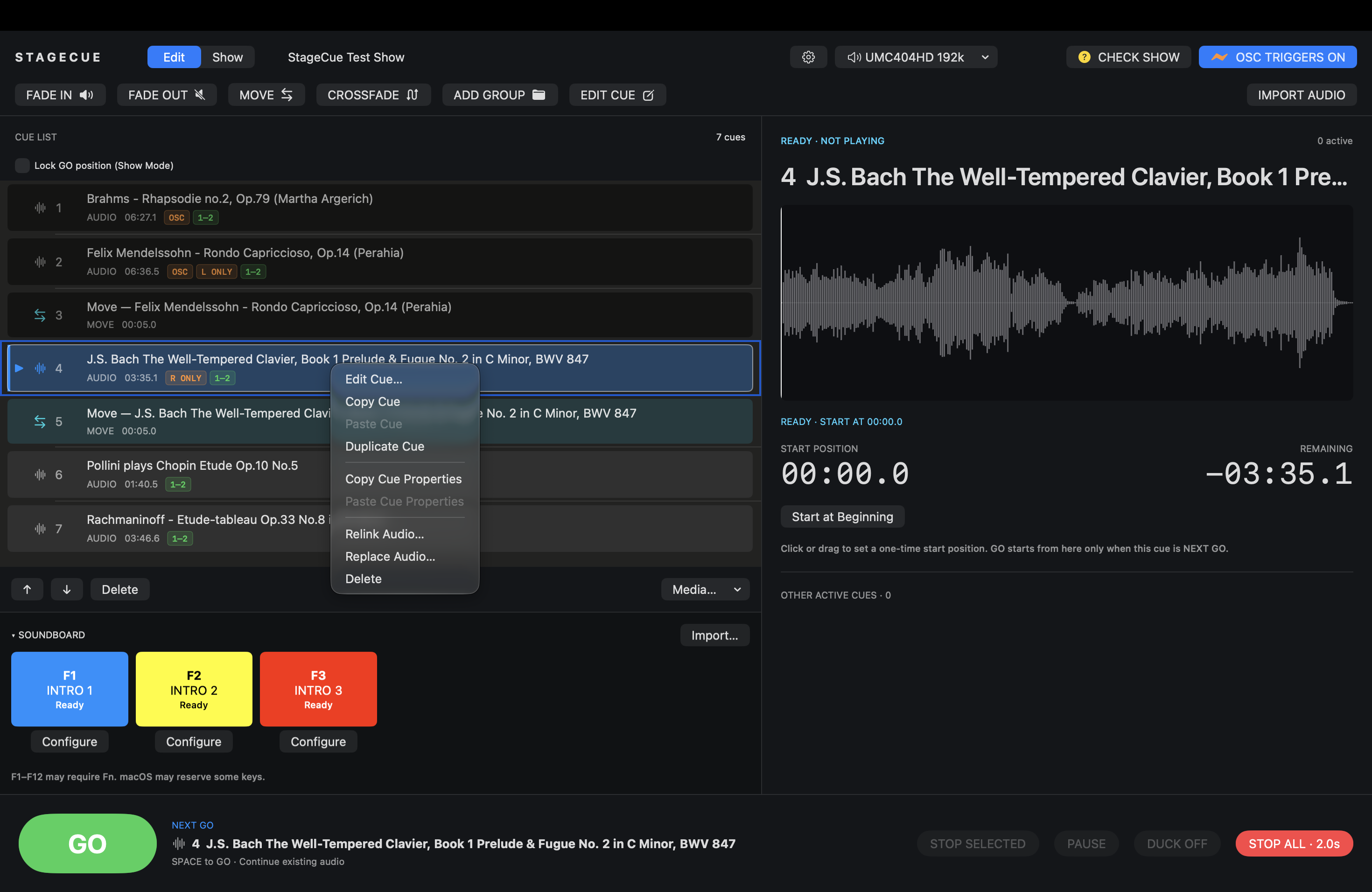
Shift-click is a grouping selection, not range selection. Command-click is not a separate multi-selection mode. Group editing uses the Add Audio Cue menu, which can import audio or move an eligible existing top-level Audio Cue into the group; child order is changed with the up/down controls.
Live shortcuts are handled only in the StageCue show window when no dialog, menu, text editor, focused control, or pointer interaction should own the key. Text fields keep their normal editing shortcuts. macOS keyboard settings may require Fn for F1–F12 or reserve those keys for system actions.
06 / Hotkey Soundboard
Assign an audio file to a pad, then trigger it by clicking the pad or pressing its assigned F1–F12 key. New pads receive the first unused function key; a pad can also be mouse-only.
Example
Trigger a doorbell, phone ring, or thunder effect without stopping the current music cue.
Start a fresh instance, then fade out earlier instances of the same pad.
Allow separate instances of the pad to play together.
Start if idle; otherwise fade out its active instances.
Do nothing while one of its instances is active.
07 / OSC lighting & remote control
StageCue supports two separate OSC workflows: timed lighting and show-control triggers sent from Audio Cues to compatible external systems, and remote-control messages received from StageQ Remote 5.
OSC / LIGHTING CONSOLES
Add OSC triggers directly to an Audio Cue to coordinate lighting changes with precise moments in music, sound effects, or other playback. StageCue can send commands to compatible lighting consoles, including ETC Eos, MA Lighting grandMA3, and ChamSys MagicQ.
A cue on stage
A musical sequence begins in StageCue. At a marked point in the Audio Cue, StageCue sends an OSC message to the lighting console. The console runs its own configured lighting cue and timing, then controls its connected lighting system.
AUDIO CUE Music playback
Conceptual timeline: each marker follows the source audio file time and sends its configured OSC message when playback crosses it.
OSC / PRESET LIBRARY
The editor generates these messages from the selected profile and its fields. Presets create editable OSC messages: confirm the address, arguments, destination port, and console-side OSC setup for your show.
OSC Destinations are configured separately in StageCue Settings with a name, host or IP address, UDP port (1–65535), and enabled state. Each trigger selects one configured destination. Compatibility depends on the console model, firmware, network, OSC configuration, and the commands it accepts; the console remains responsible for executing its lighting cues, timing, and DMX output.
OSC / REMOTE CONTROL
StageQ Remote is a separate remote-control workflow. On a reachable local network, it can send GO, STOP ALL, reset-to-first-cue, and live-volume commands to StageCue, and query cue and playback status. StageCue's default OSC control port is UDP 53000 and reply port UDP 53001. The current StageQ Remote uses fixed ports, so keep StageCue on the defaults for compatibility.
08 / Audio, devices & shows
Before rehearsal or performance
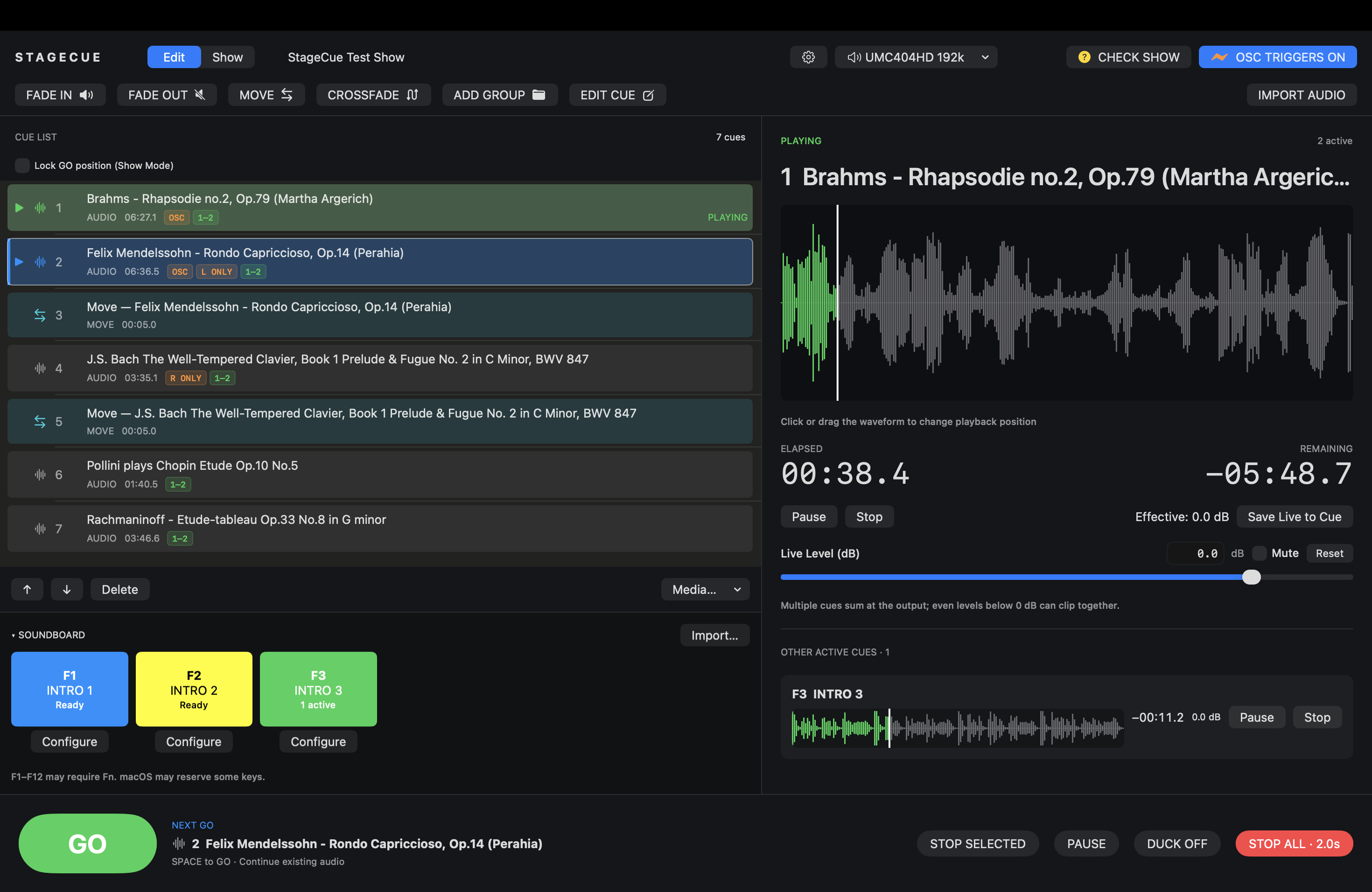
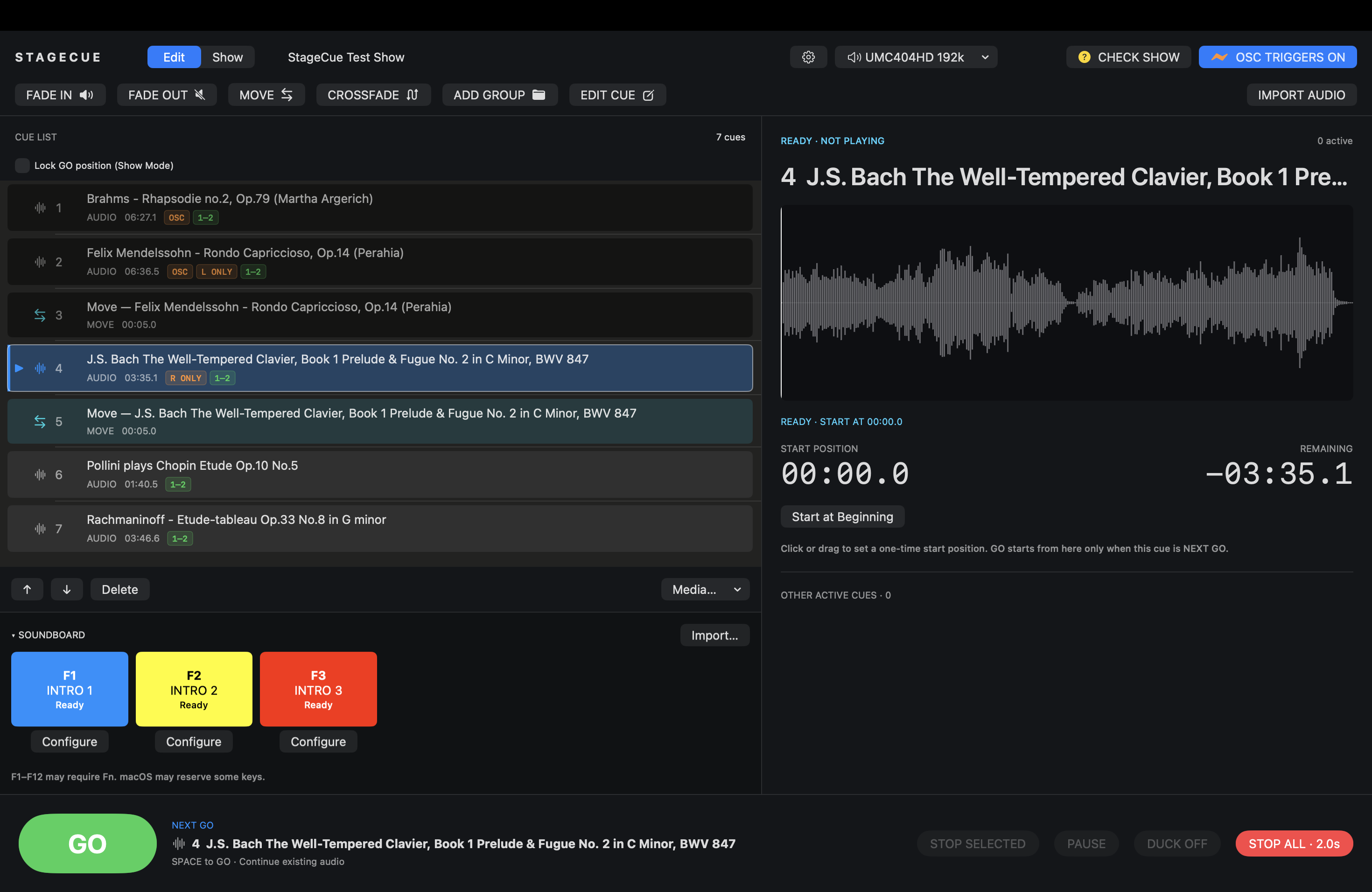
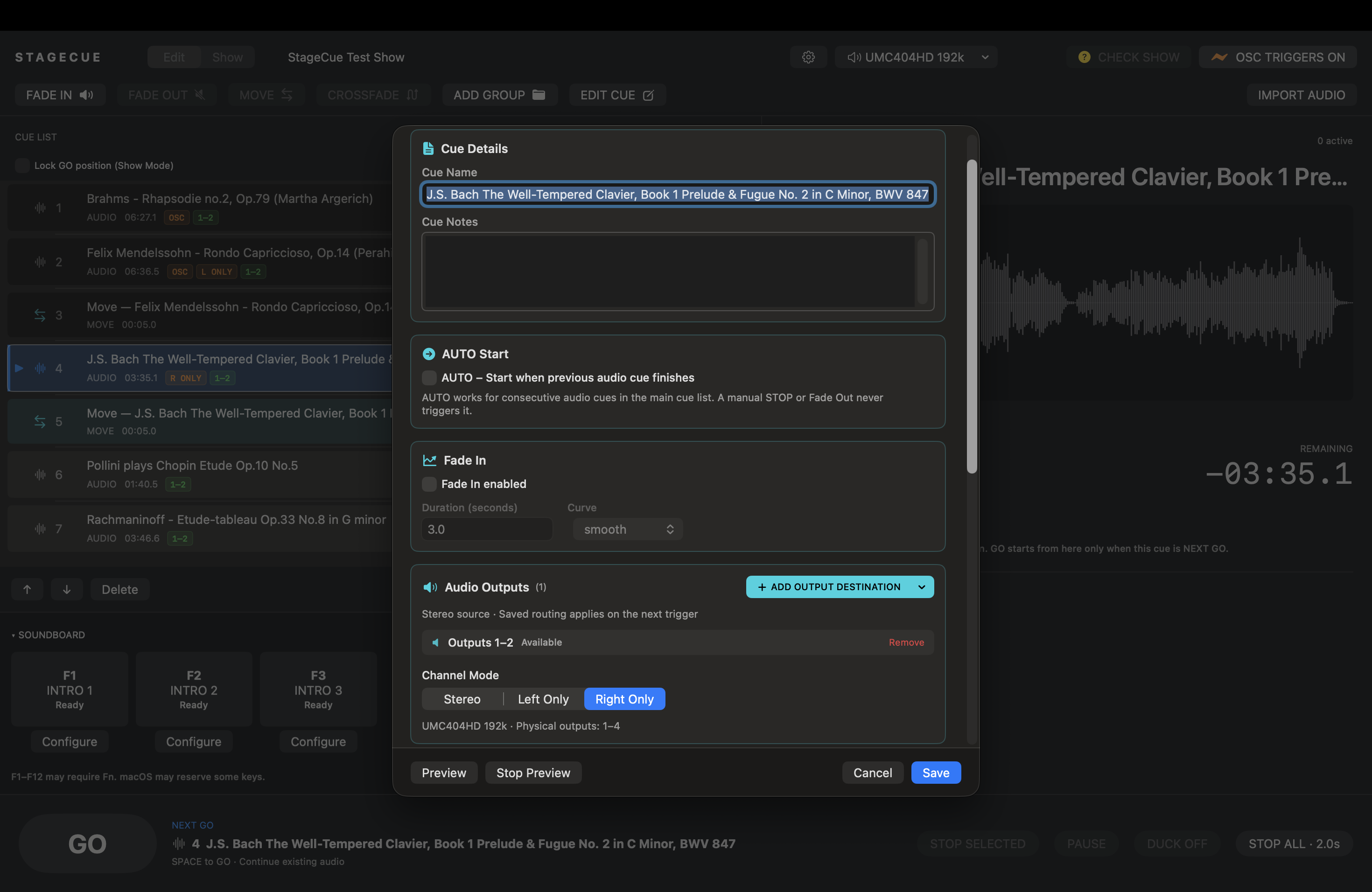
StageCue / Interface
A closer look at cue playback, waveform monitoring, and show controls.